
Appearance
Comparing two runs
Why it matters
One run tells you how a design behaves. Two runs tell you whether a change helps. This is the question clients actually pay for: "if we add two pickers, do the trucks leave on time?".
In plain words
- Clone the scenario.
- Change one thing in the clone.
- Run both with the same seed, the same horizon and the same replications.
- Compare.
Because both runs used the same dice, replication 1 of the clone sees the same trucks and orders as replication 1 of the original, until your change sends them down a different path. So the difference between them is caused by your change, not by luck. This is called matched streams, and it makes the comparison paired: each replication is compared with its twin.
Even so, three replications leave some uncertainty. The platform puts a 95 % band around every difference:
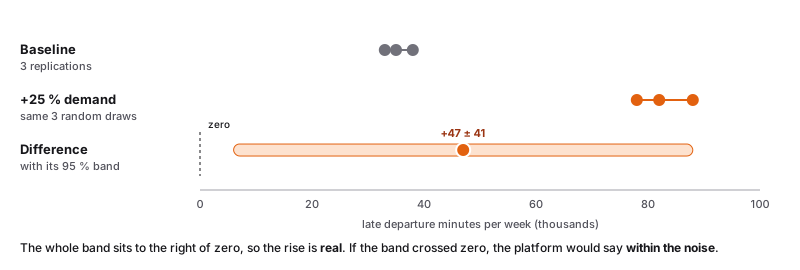
- If the whole band is on one side of zero, the difference is real.
- If the band crosses zero, the difference is within the noise: it might be luck. More replications would settle it.
In Warehouse Studio
Make the alternative
- Open a run and click Compare. If there is nothing to compare with, the card offers Clone this scenario.
- Open the clone, change one thing (for example, scale the inbound truck profiles up by 25 %), and run it with the same seed.
Or ask the copilot in one sentence; see Talking to the copilot.
Open the comparison
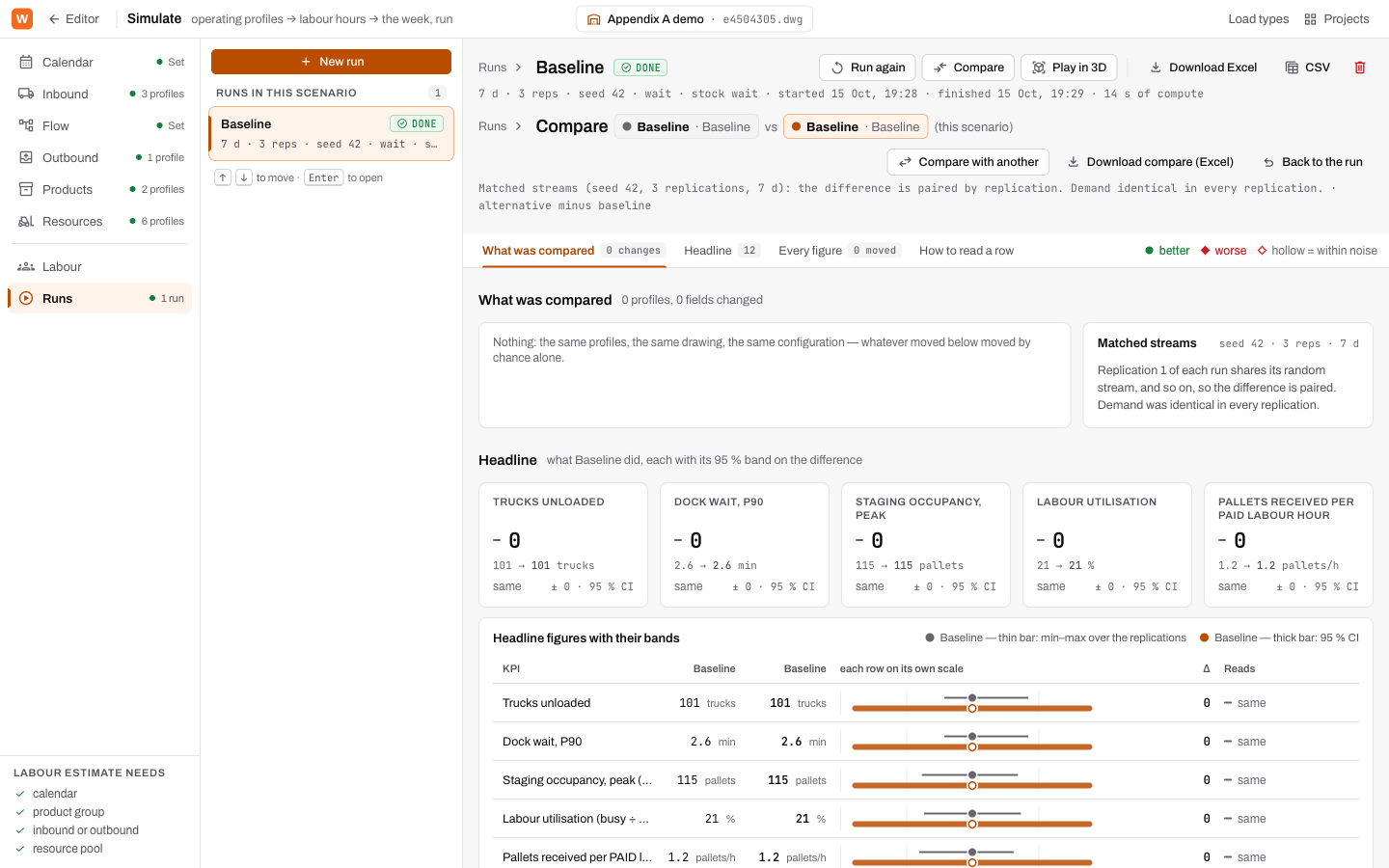
Open the baseline run, click Compare, and pick the other run. Runs with matched streams are listed first.
Read it from the top
What was compared. Cards list every profile and field that differs between the runs, for example "Palletised inbound · trucks per day × 1.25". If the runs differ in something you did not mean to change, you will see it here. Matched streams confirms the runs shared their dice, and shows the demand each replication actually saw.
Headline. One tile per headline figure: the change, baseline → alternative, its band, and whether it reads better, worse or the same.
The bands. For each headline figure, a thin bar shows the spread across replications and a thick bar shows the 95 % band. A hollow dot means within the noise.
The markers never rely on colour alone:
| Marker | Means |
|---|---|
| ● | Better, beyond the noise. |
| ◆ | Worse, beyond the noise. |
| Hollow | Within the noise. |
Every figure. All the KPIs with their differences, filterable to All moved, Real differences or Within noise. Show unchanged adds the ones that did not move.
Percent versus percentage points
When a figure is itself a percentage, its change is given in percentage points (pp). On-time going from 12 % to 6 % is −6 pp, not −50 %.
A worked example
The demo with 25 % more demand, 7 days × 3 replications, seed 42:
| Figure | Baseline → +25 % | Difference ± band | Reads |
|---|---|---|---|
| Trucks unloaded / week | 100.7 → 126.3 | +25.7 ± 8.0 | Real |
| Dock wait, P90 | 2.4 → 6.4 min | +4.0 ± 10.3 | Within the noise |
| Labour utilisation | 20.9 → 26.7 % | +5.8 ± 0.8 pp | Real |
| Departures on time | 12.0 → 5.8 % | −6.2 ± 6.8 pp | Within the noise |
| Late minutes / week | 35 554 → 82 764 | +47 210 ± 40 983 | Real, worse |
Read it like this: more demand certainly made people busier and certainly added late minutes. Whether the on-time share really fell is not yet proven at three replications. Ten replications would settle it, and each run costs about fifteen seconds.
Take it away
Download compare (Excel) gives the whole comparison as a workbook.
Try it
Clone the demo, add two people to Case pickers, run the clone with seed 42, and compare. Does the extra pair buy on-time trucks, or only paid hours?
Words you just learned
Matched streams · paired comparison · 95 % band · real / within the noise · percentage points (pp).