
Appearance
Talking to the copilot
Why it matters
Once you know what a good warehouse looks like, much of the drawing is routine: a building of this size, these zones, racking here, doors there. The copilot does that routine work from a description in plain English, through exactly the same checks you use, and tells you honestly what it could not do.
It is placed late in the course on purpose. A copilot is most useful to someone who can tell when it is wrong.
In plain words
The copilot is an AI assistant that can read and change the open scenario. It does not draw pixels. It uses the platform's own tools: "create these zones", "build a racked block here", "place six doors on the south wall". Each tool goes through the same validation as the buttons, so it cannot put a zone outside the building any more than you can.
Everything it creates is marked AI assisted, so you can always tell its work from yours.
In Warehouse Studio
Open it with the round orange button at the bottom right of the canvas, or AI ▸ AI Copilot.
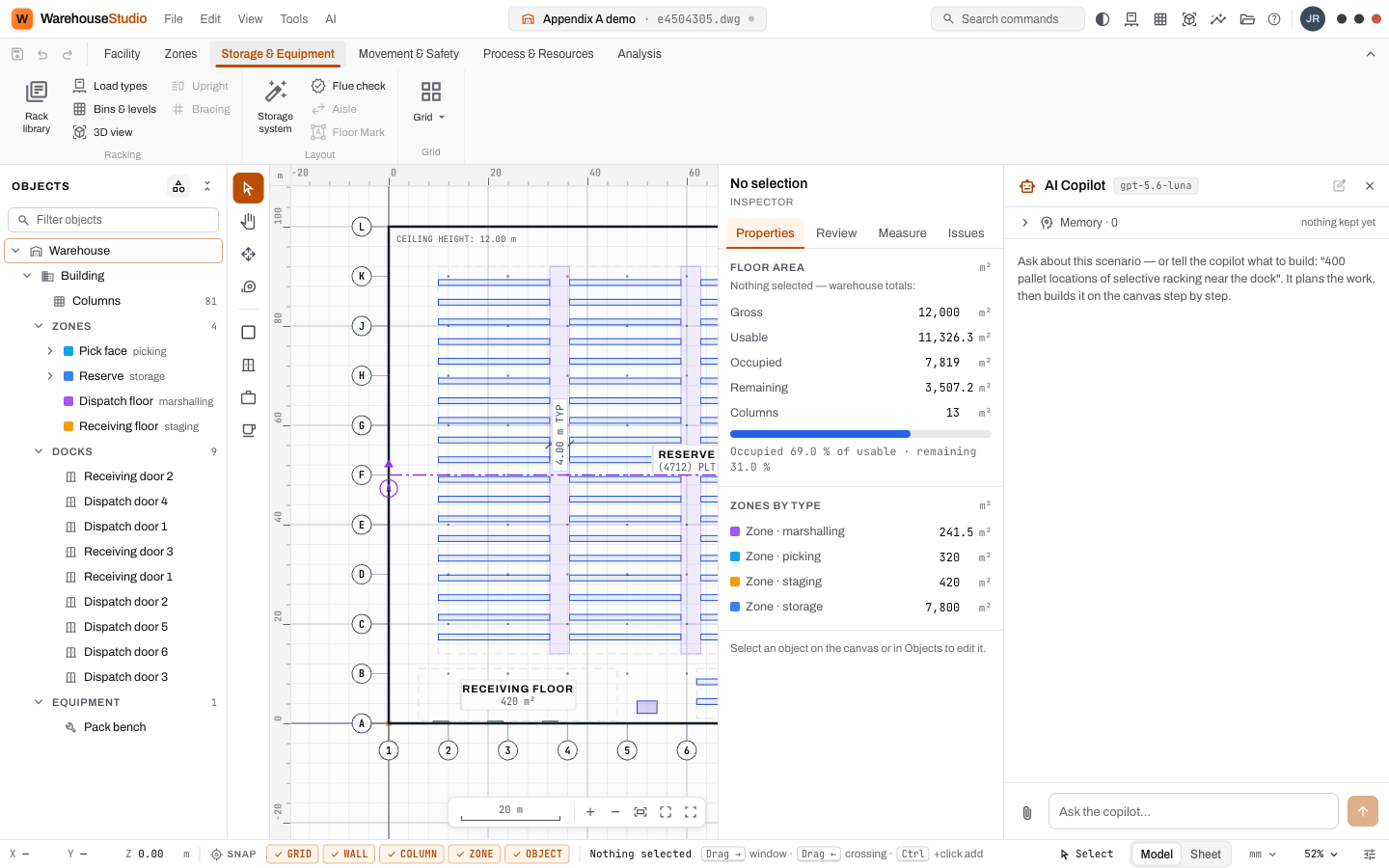
Type in Ask the copilot… and press Enter. You can attach a floor-plan image with the paperclip.
What a turn looks like
For anything bigger than a question, the copilot first writes a checklist of what it will do, then works through it. Each item ends with a verdict judged by the platform on what actually changed, not on what the copilot says:
| Verdict | Means |
|---|---|
| ok | Done, and the drawing shows it. |
| partial | Something was built, but not all of it. |
| failed | The tools refused, with their reasons quoted. |
| blocked | It needs a decision from you. |
| skipped | It decided not to, and says why. |
When a step is refused, the copilot gets one more try with the refusal quoted back to it. A step that changed nothing is never reported as done.
While it works
- Stop stops the turn cleanly after the current step.
- Type into the box while it runs to steer it: "use 3.8 m aisles instead". The message reaches it before its next step.
- If it runs out of steps with items still open, Continue carries on.
- If the server restarted mid-turn, Resume picks up where it stopped.
- New conversation starts fresh.
It checks its own work
After building a facility, the copilot measures the layout: bare floor nobody zoned, doors no road serves, zones no aisle reaches, a staging floor too small for its doors, a flow out of order. If it finds a major problem, it gets one repair pass, and anything left is written under its report.
It can also look at the drawing: it takes a picture of the plan, studies it, and shows you the picture in the conversation.
Memory
Memory keeps standing notes, such as "this client uses 3.8 m aisles" or "never use the north wall for docks". A note can apply to this scenario only or to the whole client. The copilot adds notes when you ask it to remember something, and you can add, edit and forget notes yourself.
Files
Ask for "the CAD drawing and the capacity report as Excel" and the copilot produces them. They appear in its reply as download chips. It can also set the sheet size and scale and plot the plan PDF.
What it can do
| Area | Examples |
|---|---|
| Structure | Set the building, roof, column grid and site. |
| Zones and objects | Create zones, doors, rooms, equipment, paths and dimensions, in batches. |
| Racking | Define rack specs; build a whole racked zone in one step; retune a storage system; propose a block plan for a whole facility. |
| Loads | Define load types, split levels, assign loads to bins. |
| Simulation | List profiles, scale or change their fields, run a simulation and wait for it, read and compare runs. |
| Scenarios | Clone a scenario; report capacity by phase. |
| Library | Save to and use templates from the Engineering Library. |
| Exports | Produce the DXF, capacity and register files; plot the plan. |
| Reading | Answer questions about anything in the scenario. |
What it cannot do
It says these plainly rather than pretending:
- Safety barriers, bollards and column protection.
- Slotting individual products (SKUs). A bin holds a load type, not an SKU.
- Very-narrow-aisle or shuttle systems as their own rack types.
- Free-standing interior walls, and exit travel-distance checks.
- Edit in the 3D view, or render pictures of it.
- Create simulation profiles. Those are made on the Simulate page; the copilot can only change profiles that already exist.
Try it
In an empty scenario, send:
Draw a 60 × 40 m building with a 10 m clear height and a 12 × 10 m column grid. Put a storage zone across the north half and fill it with selective racking, 4 levels. Add three dock doors on the south wall with a staging zone in front of them.
Watch the checklist, then check the result yourself: the inspector, the capacity, the Issues tab.
Words you just learned
Copilot · checklist · verdict · steer · AI assisted · memory note.