
Appearance
The editor, screen by screen
Why it matters
You will spend most of your time here. Knowing where things live saves hours.
The five areas
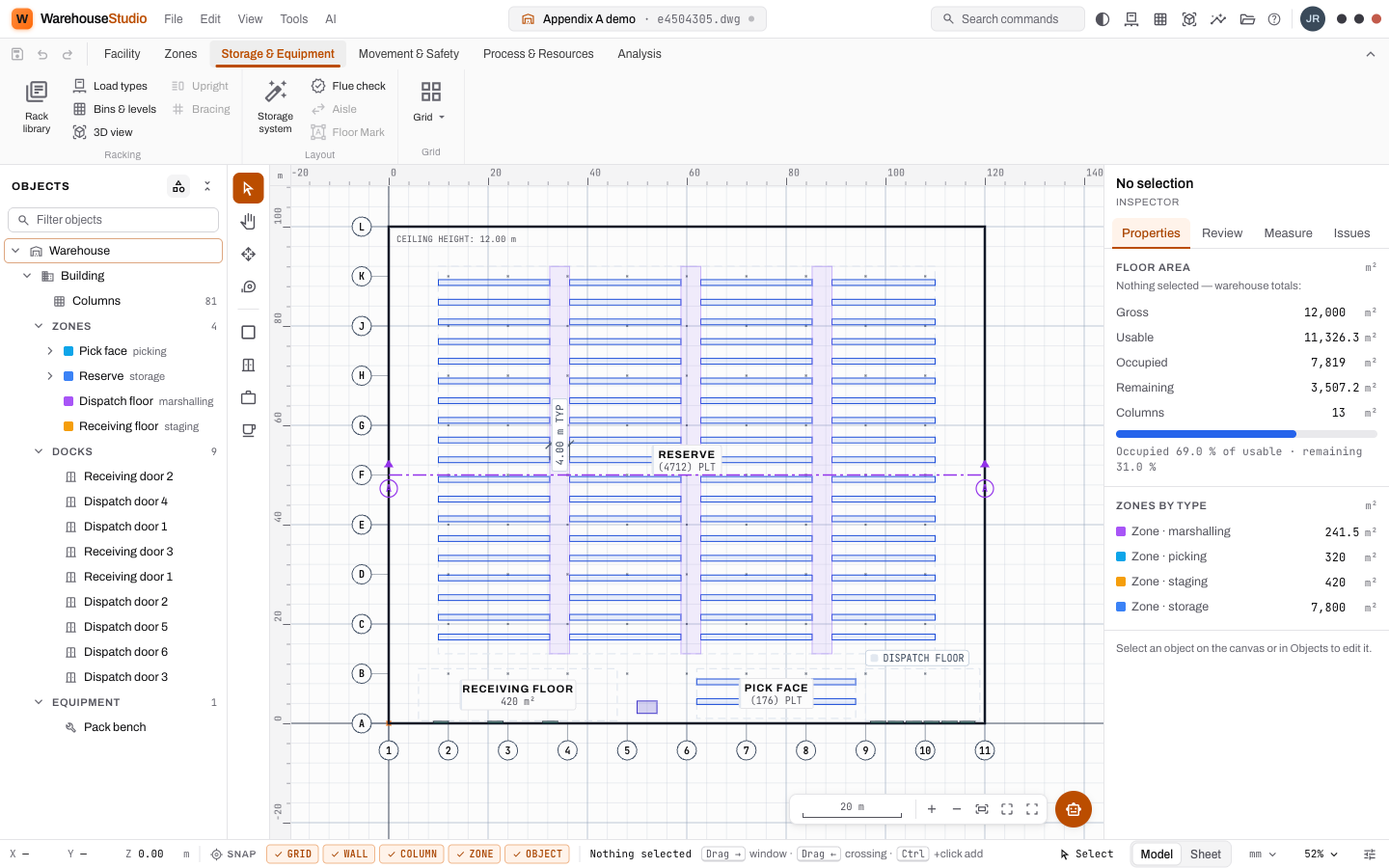
| Area | Where | What it does |
|---|---|---|
| App bar and ribbon | Top | The menus (File, Edit, View, Tools, AI) and six tabs of tools. |
| Objects | Left | The tree of everything in the drawing. Click a row to select it. |
| Tool palette | The narrow strip beside Objects | Quick tools: Select, Pan, Move, Measure, Zone, Dock Door, Office, Amenity. |
| Canvas | Centre | The plan, drawn to scale, with rulers along the top and left. |
| Inspector | Right | The selected object's properties, the Engineering Review, measurements and issues. |
| Status bar | Bottom | Cursor coordinates, snap switches, the current tool's instructions, Model/Sheet, units and zoom. |
The ribbon, tab by tab
The ribbon is organised the way a warehouse is designed: structure first, then zones, then storage, then movement, then process, then analysis.
| Tab | What you do there |
|---|---|
| Facility | Select and modify; undo; draw the building, roof, columns and site; place dock doors, offices, amenities and rooms; import underlays; add dimensions. |
| Zones | Draw Storage, Picking, Staging, Marshalling and Exclusion zones, and the Yard outside. |
| Storage & Equipment | The Rack library, Load types, Bins & levels, the 3D view, and Storage system (generate racking). |
| Movement & Safety | Draw MHE, pedestrian and egress paths and roads; choose the design vehicle; draw fire path and pedestrian zones. |
| Process & Resources | Place stations (packing, QC bench, workbench, charging, tool crib), machines and dispatch-line equipment; open the Simulate page. |
| Analysis | The capacity report, the Engineering Review, Issues, and sections and elevations. |
A dimmed button is on the roadmap but not built yet. Hover it and the tooltip says "coming soon".
The inspector's four tabs
| Tab | Shows |
|---|---|
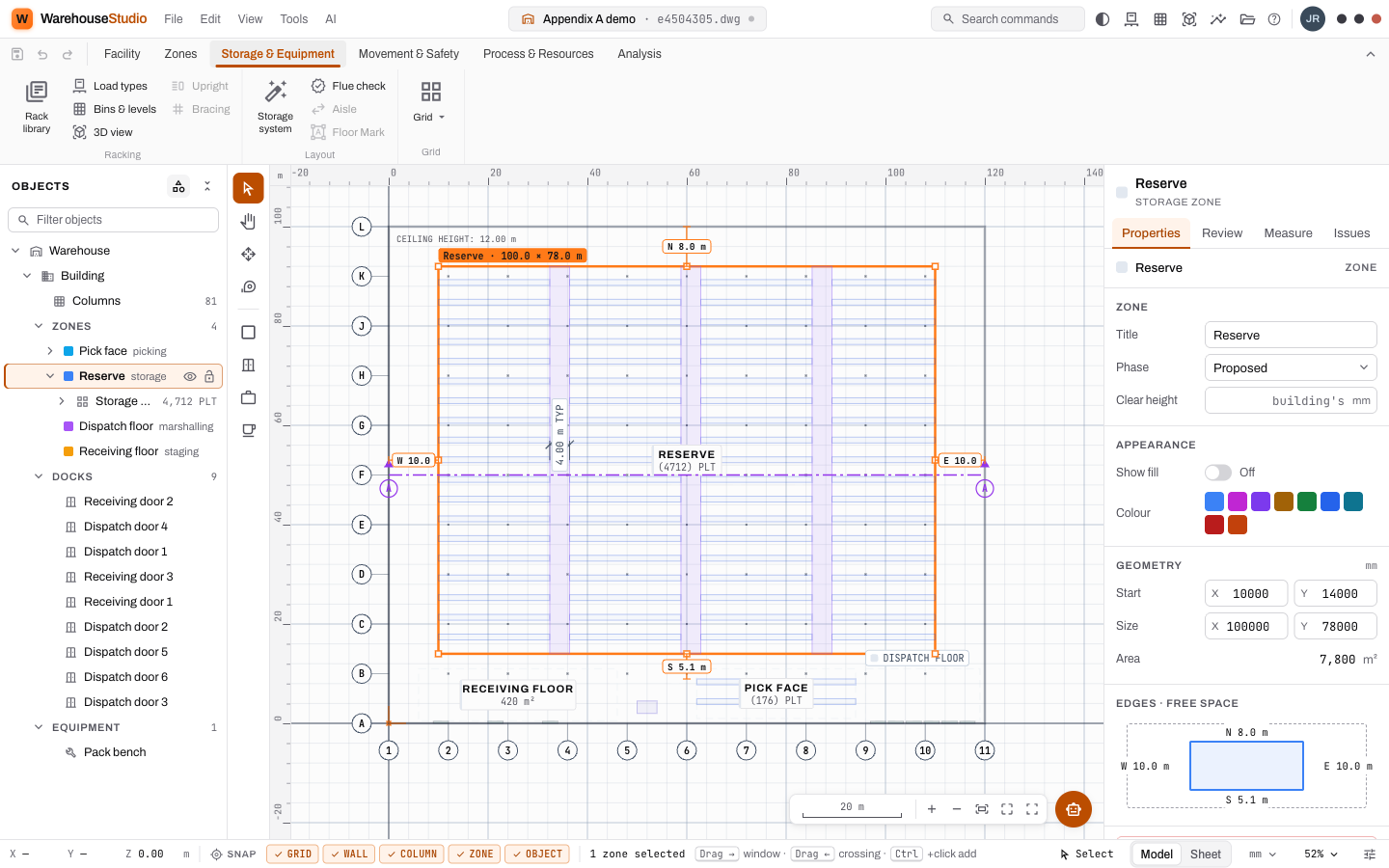
| Properties | The selection's name, type, phase, appearance, geometry and edges. With nothing selected: the warehouse's floor areas. |
| Review | The Engineering Review: capacity, density, travel, expandability, safety, compliance. |
| Measure | The result of the Measure tool. |
| Issues | Every rule finding, with the object it concerns. |
Selecting
- Click an object on the canvas, or its row in Objects.
- Drag to the right for a window selection: only things wholly inside the box.
- Drag to the left for a crossing selection: anything the box touches.
- Ctrl+click adds to the selection.
- Esc clears it.
A selected zone shows grips at its corners, a tag with its size, and its distance to each wall.
Moving around
| To | Do |
|---|---|
| Zoom | Scroll the wheel, or use + and − at the bottom right. |
| Pan | Drag with the middle mouse button, or choose Pan (P) and drag. |
| See everything | Press F, or click Fit to screen. |
| Zoom to an area | Click Zoom to window, then drag a box. |
| Full screen | Click Full screen at the bottom right. |
The status bar
From left to right: the cursor's X, Y and Z; the snap switches (grid, wall, column, zone, object); what is selected; what the tool expects next (for example "Click two points to measure"); the current tool; Model / Sheet; the units; and the zoom.
When you are unsure what to do next, read the middle of the status bar. It always tells you.
Modifying things
| Tool | Key | What it does |
|---|---|---|
| Move | G | Drag the selection to a new place. |
| Rotate | R | Drag to rotate; snaps to 15°. |
| Reshape | E | Drag a grip; a corner drag resizes a rectangle. |
| Copy | Clone the selection. Edit ▸ Array / multi-clone… makes many copies in a row or a grid. | |
| Delete | Del | Delete the selection, and its children. |
| Undo / Redo | Ctrl+Z / Ctrl+Y | Step back and forward. |
You can also type exact numbers: the inspector's Geometry section has the start point and size in millimetres.
Words you just learned
Ribbon · inspector · window selection · crossing selection · snap · grip.