
Appearance
Sheets, sections and 3D
Why it matters
A plan from above tells half the story. A client wants a printed sheet at a known scale. An engineer wants to see whether the racks clear the roof. A manager wants to see the building. All three are views of the same model.
Sheet mode: the plan on paper
In plain words, a sheet is the drawing as it will be printed: a sheet of paper (A1, A3…), a scale (1:200 means 1 cm on paper is 2 m in the building), a legend and a title block with the project name and date.
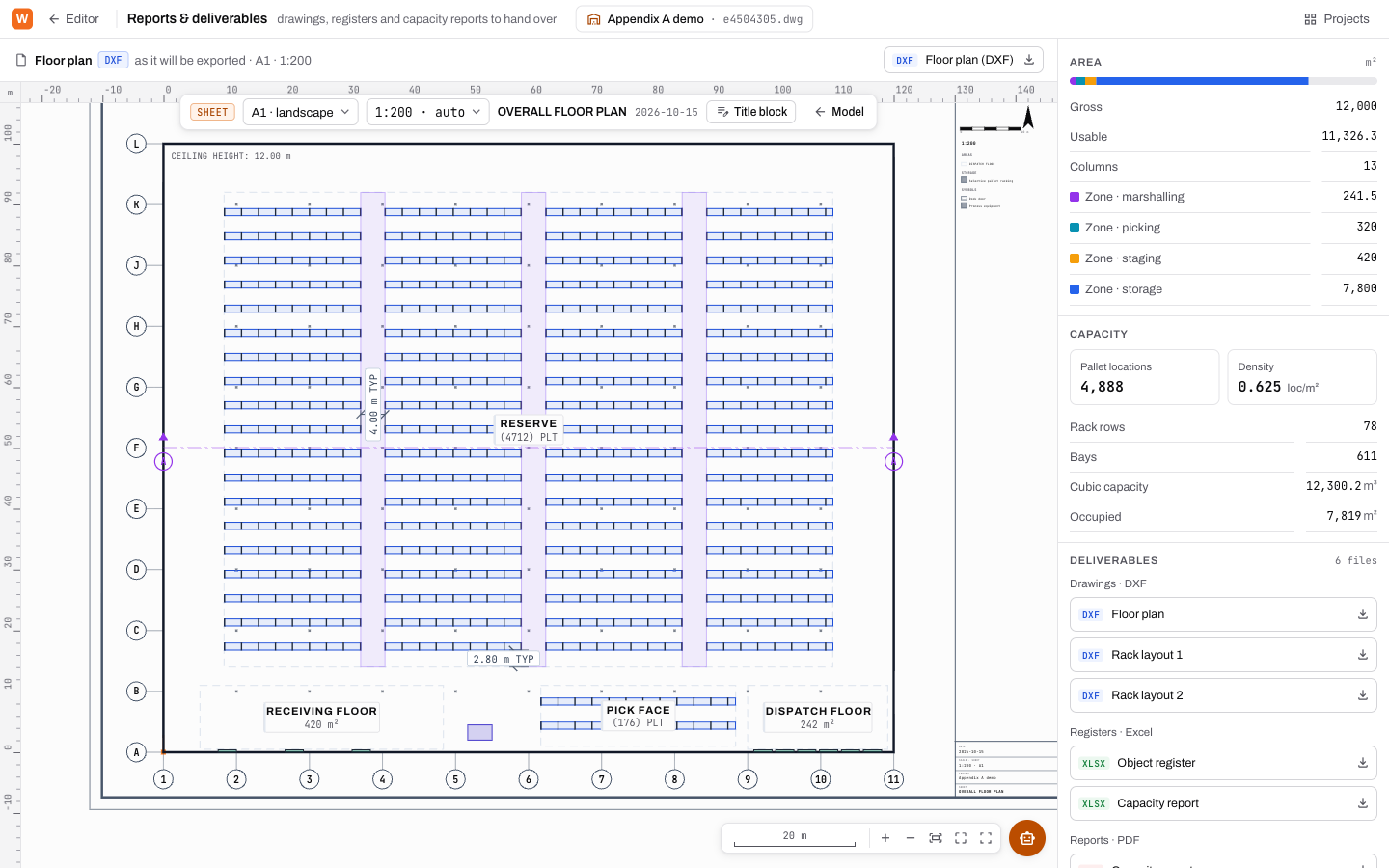
- In the status bar, switch Model to Sheet.
- Use the floating Sheet bar to choose the paper and orientation (A4 to A0, landscape or portrait) and the scale. auto picks the largest standard scale that fits.
- Click Title block to set the sheet title.
- Export with File ▸ Export plan (PDF drawing set). The PDF carries the plotted plan and the capacity pages, as one file.
Sheet mode always draws in the light theme, without the background grid, because that is how it prints. The legend is built from what is actually on the drawing.
Sections and elevations
In plain words, a section is what you would see if you sliced the building with a giant knife and looked at the cut face. An elevation is the view of one whole side.
- On the Analysis tab, in Sections, click North, South, East or West for an elevation, or Section to draw your own cut: click two points on the plan.
- A panel opens below the plan, showing racking, loads, the roof line and level heights.
- Its toolbar renames the view, flips the looking direction, sets the depth of the slice, toggles racking, labels, layers, roof, heights and floor, fits, takes a snapshot and closes.
- Panel reopens the last section.
The section reads the same bins as the rest of the platform, so if a level holds a particular load, the section draws that load at its true size.
The 3D view
The 3D view (on Storage & Equipment, or View ▸ 3D view) builds the model in three dimensions: the building shell, columns, racking with its pallets, doors, rooms, machines, the yard and roads.
| To | Do |
|---|---|
| Orbit | Drag. |
| Pan | Ctrl + drag. |
| Zoom | Scroll. |
| Named views | 1 Top, 2 NE, 3 NW, 4 SE, 5 SW, 6 Front, 7 Site, F Fit. |
| Perspective / orthographic | O. |
| Walk the floor | V, then W A S D to move, Shift to run, Q / E for eye height, Esc to stop. |
| Select | Click. Double-click frames the object. |
| All shortcuts | ? |
The 3D view is read-only. You edit in the plan; the 3D view follows. Anything it had to assume, such as a door height nobody entered, is listed under Assumed with how many objects use it.
Try it
Open the demo in sheet mode at A1 landscape. Then open the West elevation and the 3D view, and find the receiving doors in each.
Words you just learned
Sheet · scale · title block · legend · section · elevation · orthographic.